
Automatic items generation
It happens sometimes have to insert item groups of the same type, with common properties, and progressive names and addresses.
|
Example: |
Item Name |
L_ESTERNO_1 |
.. |
L_ESTERNO_10 |
|
|
Address |
1:0: i: 1:1 |
.. |
1:0: i: 1:10 |
|
|
Description |
Outdoor Lamp 1 |
.. |
Outdoor Lamp 10 |
|
|
etc.. |
|
|
|
In such conditions it may be may be useful the function of Automatic generation of items, which allows you to insert a group of items of type counterpart in a single operation, defining the constant parts and variable parts of each parameter.
Even if the address does not prove progressive, it may be convenient to use also the usefulness of automatic generation, subsequently changing addresses by exporting and re-importing the database...
Note: The usefulness of Automatic Generation allows you to insert groups of items of one type at a time (Analog, Digital, Text).
To insert a sequential group of items:
- Open the Real-Time DataBase Editor window by selecting the command Item List on the menu Database from X Editor
- Select the tool
 in the toolbar of the window
 - The system displays the Item Generation window that allows you to specify the parameters for the set of items:
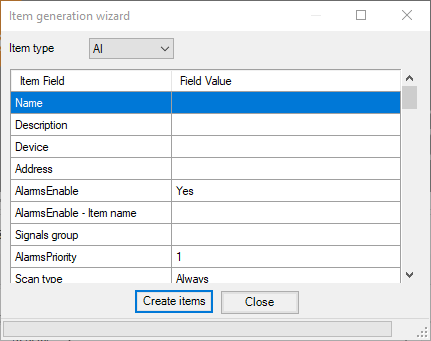
- From the Item Type pop-up list select the type of item you want to generate.
- The definition window shows the fields for the selected type.
- Double-clicking on each field displays the Item Value Field input window, to insert the value.
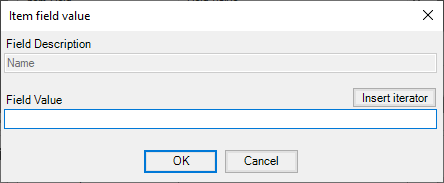
Fields and commands in the Item Value Field window:
|
Field description |
Name of the field being edited |
|
Field Value |
The value to assign to the field. Will be used for all items in the group |
|
Insert iterator |
Allows you to enter an expression in the expression value of the Progressive Field. |
- Specify, in the Field Value field, the value to be assigned to the selected field for all items in the group. You can specify a constant expression (e.g., in the case of thresholds, flags, state names, etc..) or a numeric expression progressive (e.g. an index), or a concatenation of both. For more information, see "Inserting expressions progressive and / or mixed, "Later in this chapter.
Note: Because the Item name must always be unique, in the Name field must necessarily be an expression that contains at least one progressive variable. The number of Item generated depends on the product of the progressive components specified. If you specify an expression without progressive components, you will receive a single item. - Press OK to confirm the entry
- After you specify the value of all the fields, select Create Item to create the group. If the specified parameters are valid, the procedure for automatic generation starts. Otherwise, you receive a message with a description of the error.
- When the creation process is completed, the system displays a window that informs about the success of the operation. After closing the message box, you can begin entering a new group of items, or terminate the operation by selecting Exit.
Inserting progressive/mixed progressive expressions
A field can be composed of a constant part (e.g. a text) and a variable portion (e.g. an index). Text and variables can be freely mixed. To create this expression:
- Select the field in the Item Generation wizard property grid, and then double-click on it to open the Item Field Value input window.
- Specify the constant part of the expression
- Move the cursor to the point where you want to insert the variable expression
- Select the command Insert Iterator. The system displays the Iterator settings configuration window:
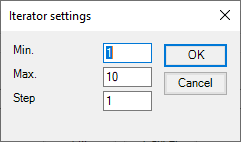
- Specify, entering Minimum Value and Maximum Value, the range of values to be assigned to the variable. In the Step field specify the range of values between an index and the next. Press OK to confirm, Cancel to abandon the operation.