
Connectors configuration
The Connectors Configuration window, called up by selecting Connectors from the Configure menu of the X Editor, allows you to select the drivers associated with the current project and to directly access the related configurators:
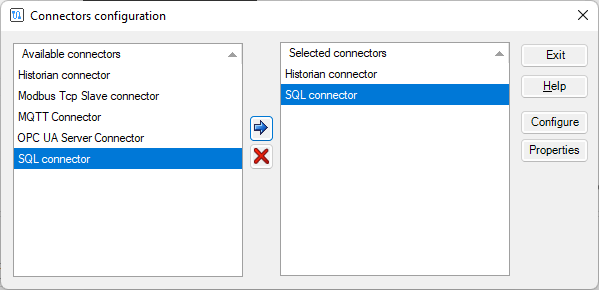
Selecting drivers for the project
In the Driver Configuration window, the left-hand list shows the drivers installed and available for use; the drivers associated with the project are displayed in the right hand list.
To add a driver to the list of used drivers:
- Select the driver you want in the list of available drivers
- Drag the drivers in the list of selected drivers
- or -
Double click on the selected driver
- or -
Push the button
- or -
Select the Add to Selected Connectors command from the context menu
To remove a driver from the list of drivers associated with the project:
- Select the driver you want to remove in the Selected Driver list
- Drag the drivers in the list Available Connectors
- or -
Push the button
- or -
Select the Remove from the selected drivers command from the context menu
Note: although the selection is extended graphically on multiple items, the controls are always relative to the first selected item
Dispaying driver properties
To view the properties of a driver associated with the project:
- Select the driver whose properties you want to show in the list of Selected Connectors
- Push the Property button
- or -
Select the Property command from the context menu - The system shows the Driver Properties window shown in the following figure:
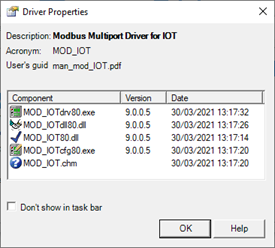
The Driver Properties window displays general driver information (description, acronym, etc.) and lists the constituent modules, displaying the version number and release date for each. This information must always be communicated when requesting technical assistance for the driver in question.
Running connectors as non-visible application
You can run the driver without that appear in the system tray (taskbar) of Windows. To activate this option, tick the checkbox Don't show in the taskbar present in the properties window of the driver (see Viewing the properties of the driver).
Note: Some connectors may not support this option.