
Controlling trends by animations or keyboard events
Each object trend can be controlled by animations or keyboard events by properly configuring the action associated with them and identifying the trend object to be controlled.
The actions available for the trend in the audit are:
|
TRD: Enable |
Enable (or resumes) the updating of the dynamic graph. Available only for dynamic trend |
|
TRD: Configuration |
Show the configuration dialog |
|
TRD: Grid |
Show or hide the grid |
|
TRD: Set period |
Set the display period (Timespan) |
|
TRD: Reset Zoom |
Performs the zoom reset (display shows the scale 1: 1) |
|
TRD: Scroll Next |
Move the trend display window forward on the time scale. |
|
TRD: Scroll Back |
Move the trend display window backward on the time scale. |
|
TRD: Select Pen |
Makes active the specified Pen |
|
TRD: Single pen selection |
Show only specified Pen, hiding the other ones |
|
TRD: Print |
Print the trend |
|
TRD: Stop |
Stop the display update for a trend object. Available for Dynamic Trend only. |
|
TRD: Go To Date |
Moves the time axis to the specified date |
|
TRD: Show Pen |
Shows/hides a pen |
|
TRD: Zoom |
Enable the zoom function with the left mouse button |
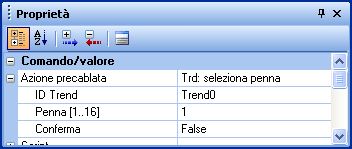
All actions require as a first parameter the object ID of the trendswich is controlled.
In the example that follows an animation has been configured to make the pen 1 active in the trend identified as Trend0 in the synoptic:
For more information about the actions and parameters required refer to Appendix "Actions".
The Trend object also exposes properties and methods that can be used to control it through scripts related to animations or keyboard events.
For more information on this, refer to the Basic Script Guide.