
Creating data source for ODBC
To record the sampled data using ODBC it is necessary to define the ODBC data source that the system will use for writing to the archive. You can use an existing ODBC connection or create a new one.
For more information about configuring the ODBC data source refer to the documentation of the driver for accessing the desired data store.
Note: the creation of the ODBC connection can be performed manually as described in this paragraph, or be delegated to the appropriate wizard present in the sampling group ODBC configuration window.
You can also use the specific driver for the desired data store in place of an ODBC connection. For more information refer to the following paragraphs.
The following is an example to create a new ODBC connection to an Access table under Windows XP Professional.
- From the Windows Control Panel, choose Administrative Tools, Then click Data Sources (ODBC). The system displays the ODBC Data Source Administration window.
- Double-click on the Data Source (ODBC) icon. The system shows the administration window of the ODBC data source.
- Choose the DSN System tab.
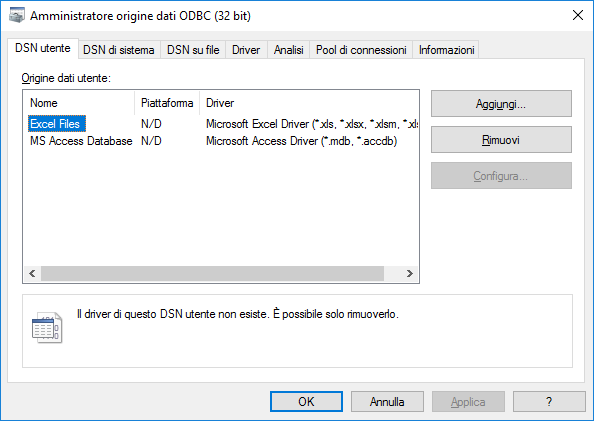
- To choose Add... The system displays the selection of the data driver window.
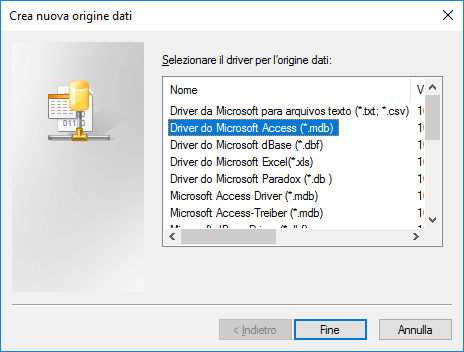
- Select the Microsoft Access Driver entry (* .mdb). The system shows the configuration window of the ODBC connection.
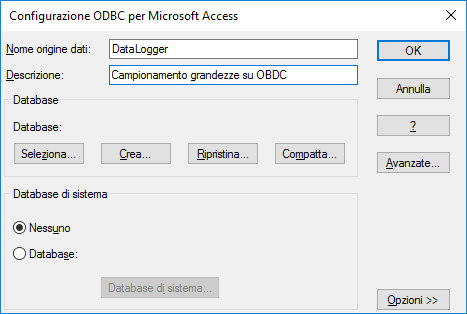
- Set the name of the DSN data and possibly the description.
Note: The DSN data source name specified in the window will have to be selected during configuration of the sampling group in the Data Logger configurator: - Choose the Select command. The system shows the database selection window (.mdb) to connect to.
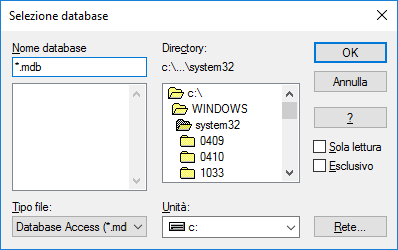
- Select the archive file created previously.
- In the ODBC Microsoft Access Configuration window, click OK.