
Event Action configuration
To configure the Project Event Actions, select the Event Actions item from the Configure menu of the X Editor, or double-click on the node of the same name in the Project window. The system displays the Event Action Configurator window, shown in the figure:
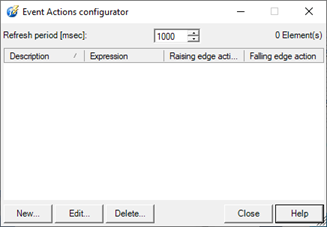
The window displays a list of currently configured Event Actions definitions.
The New, Edit, Delete buttons allow you to insert, edit or delete the definition of an event action.
The same commands are also available from the context menu.
The changes made are automatically saved when the window is closed.
Warning: Any changes made to the definitions of actions on events have an immediate effect on the next scan. There is no need to restart the system.
Event Action properties
The properties of an event action are configured in its property window, displayed during editing:
The Event Data window, shown in the figure, allows the configuration of a new Event Action or the editing :
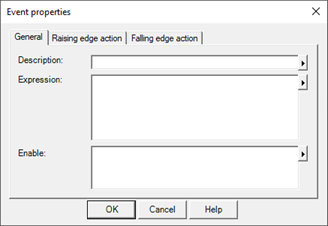
The Event Data window has three tabs (General, Rising Edge Action and Falling Edge Action) and contains the following fields:
General properties
The General tab allows you to define the trigger event.
|
Description |
Allows you to specify a free text (optional) that describes the function of the action
|
|
Expression |
It allows to specify the expression to be monitored for the execution of the action. Note: if no expression is specified, the action will not be inserted.
|
|
Enable |
Allows you to specify a condition that enables execution of the action. The action is managed if the expression defined in Enable is True (that is, it has a value different from 0), while it is inhibited otherwise. |
Definition of actions on rising and falling edge
The Rising Edge and Falling Edge Action tabs allow you to configure the actions to be performed in response to the rising and falling edges.
For the configuration of the action, refer to the instructions in the paragraph "Configuration of Actions" in the "Common editing functions" chapter
Duplication of a definition
To duplicate an existing Event Action, simply select it and choose the Copy and Paste commands from the context menu.
Change the scan period
The Scan Period field of the Event Actions Configurator window displays and allows you to change the period in which the system processes events on configured events. The parameter expresses the processing interval in milliseconds.
The change in scan period becomes effective on the next scan