
Adding and modifying a wizard
To create a wizard or modify an existing one, access the Wizard Manager window, selecting the Configuration command from the Wizard submenu of the X Editor Tools menu.
To create a new wizard:
- Select the category where you want to add the new wizard
- Select the command New Wizard ... from the context menu.
- Enter the name of the new wizard and press OK to proceed.
To edit an existing wizard:
- Select the wizard
- Choose the Edit Wizard ... command from the context menu or click on the Edit command at the bottom of the window.
To create or modify a wizard, the system opens the wizard editor, shown in the following figure:
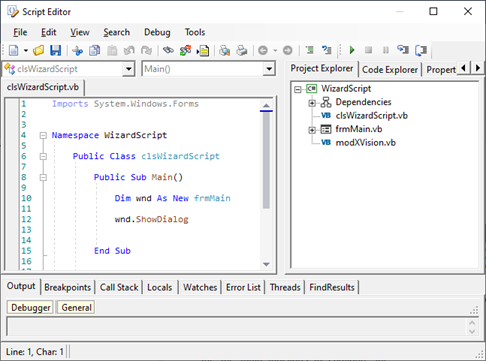
The wizard editor consists of two main areas: the module list and the editing area.
The list of modules occupies the left side of the editor window, and displays all the code modules (* .bas) in the current wizard folder. Double-clicking on a module opens it in the editing area.
The editing area displays the code contained in the modules and allows modification. On the left edge of the editing area there is a vertical tab panel that allows movement between the open modules. The index of each card indicates the order of opening of the individual modules, while the name of the open module is displayed in the tooltip of the card itself:
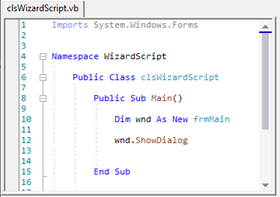
A maximum of nine modules can be kept open at the same time.
For what concerns the development (drafting of the code, composition of dialogs, debugging), the script editor is basically similar to the foreground script editor.
For further information please refer to the Basic Script Guide and the online help of the editor.