
Adding custom modules
To configure the start of custom modules, select the Modules command from the Configure menu of the X Editor. The system shows the Module Activation window, shown in the following figure.
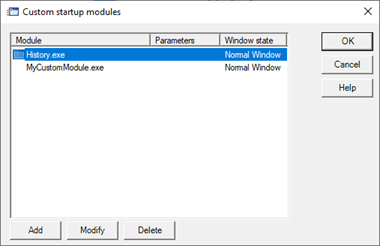
The Add, Edit, Delete buttons allow you to add a module to the startup list, modify its activation parameters, or remove it from the startup list.
The vertical movement buttons to the left of the list allow you to change the order in which the modules start up: the start order corresponds to the order in which the modules are displayed in the list.
Note: System Service Managers (General Calculations, Alarm Handlers and Alarm Summary, DataLogger, Scheduler Manager, etc.) are automatically activated by the system and do not need to be entered between the startup modules.
Note: The development environment (X Editor) is always activated automatically by starting the system through the Project Manager, while it is not normally activated under run-time conditions (system start executed by the Project Manager or by X Start, omitting the parameter /IS). You do not need to insert X Editor into the startup modules unless you want to activate it even under run-time conditions. For further information refer to the chapter Starting and closing the system.
Note: The display module (X View) is always activated automatically when the system is started by X Start, omitting the parameter / E (standard run-time boot). You do not need to insert X View between the startup modules, unless you want to activate it even under Editing conditions. For further information refer to the chapter Starting and closing the system
Properties of the custom modules startup
The configuration of a startup module takes place through the Module window, displayed when adding or modifying a startup module:
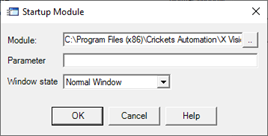
The fields available in the window are:
|
Module |
Name of the executable file to be activated. If the file is not in the X Vision installation directory or in another registered directory, you must also specify the full path.
|
|
Parameters |
Activation parameters
|
|
Status |
Program execution status. Select Window, Icon, or Hidden. |