
Analog measure linearization
Almost all of the X Vision input/output drivers support the automatic linearization of analog values, making the automatic conversion of the raw value read from the device in engineering units and vice versa. The conversion is determined by the parameters Ratio and Bias configured for the item.
In particular, the value read from the field is converted and recorded in the database using the following formula:
Value in engineering units = (raw value * ratio) + Bias
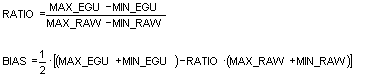
Since the interval of the raw value (MIN_RAW and MAX_RAW) and the corresponding interval of the converted value in engineering units (MIN_EGU and MAX_EGU), the values of the Ratio and Bias may be calculated as follows:
Ratio/Bias Expert
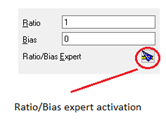
To simplify the calculation of Ratio and Bias, in the configuration windows of the items of type Analog is available utility Ratio / Bias Expert, which automatically calculates the value of Ratio and Bias introducing the range of raw values and the range of values expressed in the unit of measure chosen. The Ratio / Bias Expert is activated by selecting the appropriate button, as shown in the figure:
The window of the Ratio / Bias Expert appears as in the following figure:
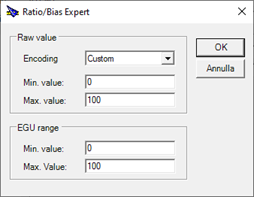
The window contains the following fields:
|
Raw value group Allows you to specify the range of the raw value. |
|
|
Encoding |
The combo contains some of the most common encoding formats. Selecting a standard, the Expert automatically sets the extreme minimum and maximum raw value. |
|
Min. |
Specifies the lower end of the range of the raw value |
|
Maximum value. |
Specifies the upper bound of the range of the raw value |
|
|
|
|
EGU Range Allows you to specify the range of the value expressed in engineering units. |
|
|
Min.Value |
Specifies the lower end of the range of the value in engineering units. |
|
Maximum Value |
Specifies the upper bound of the range of the value in engineering units. |
Specifying the details of the two ranges of values (raw and engineering units), the Expert Ratio / Bias automatically calculates the values of Ratio and Bias, and closing the window with OK fill in the corresponding fields of the configuration window for the item.