
Changing item values using Text animation
By means of Text type animations enabled for data input, the operator can modify the value of an item: by double clicking within the animation area the system activates an entry window; as configured in the animation properties, the entry can be made using the standard input window (free input via keyboard for analog values or texts, on / off selector for digital values) or by numeric or alphanumeric on-screen keypad (particularly useful for use with Touch Screen.)
To enable and change the input mode, see the "Text Animation" sectioni n the chapter "Animations"In this guide.
Note: You can configure the display to activate the input on single click instead of double click
Note: for items of type Analog input value is limited by the properties Minimum Value and Maximum Value specified for the same item.
These limits are displayed in the input windows. If both limits are 0 are not processed.
Note: the numerical values are entered using the decimal place, as defined in accordance with International Settings in the Control Panel of Windows.
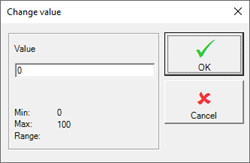
The following figures show the input windows available:
- Change Value standard window for keyboard input of analog values or text
- Change Value standard window for the input of digital values
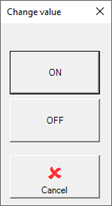
Note: the text of the ON and OFF buttons is replaced with the text may be specified for the properties On State and Status Off of the item
- Keyboard Numerical Virtual
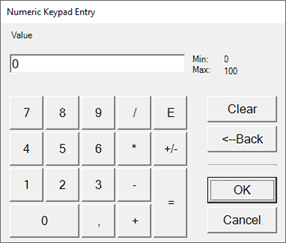
Note: the virtual keyboard allows you to make simple calculations based on the four fundamental operations. However it is not equipped with algebraic logic.
- Virtual alphanumeric keyboard:
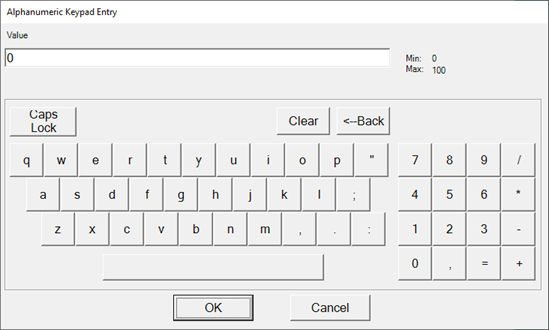
Note: unlike the numeric keypad, alphanumeric keyboard does not have arithmetic functions: the symbols of the operators are inserted in the text.