
Configuring X View
To access the configuration window of the viewing environment, select the command XView Parameters... from the menu X Editor/Configure. The system displays the X View Parameters window, Illustrated in the figure:
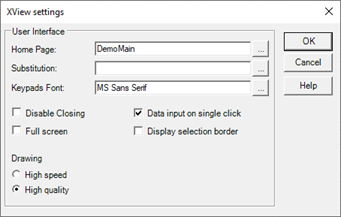
The window allows you to specify options for the visualization and interaction with the user:
|
Home |
Specifies the name (without extension) of the synoptic displayed when the viewer startup. |
|
Keypads Font |
Allows you to customize the font for displaying virtual keyboards may be used to allow data entry via touch screen. |
|
Disable Task Switch |
If selected, disables the Windows task-switching (moving between active applications and / or desktop by pressing the Alt + Tab), while X View is open. By activating this option, the Widescreen setting is ignored, as it is forced to display in full screen. |
|
Disable Close |
If selected, disables the closing of the XView window rendering ineffective the following commands: |
|
XP Looks |
Enables the XP look to controls in the XView form. Requires the system is running under Windows XP operating system. Currently not available |
|
|
|
|
Full Screen |
If selected, the module X View is activated in full screen mode (i.e. occupies the entire visible area of the screen). In this condition, the title bar is not visible, and the closing of the window, if enabled, must be done via the keyboard by pressing the keys ALT + F4. |
|
Data input on single click |
If selected, enables virtual keyboard activation by a single click, instead of double-clicking (especially useful when using the touch-screen) |
|
Displaying selection border |
If selected, enables the display of the selection border, consisting of a frame that highlights the active animation. |