
How to configure a Keyboard Event
The Keyboard Event Properties window allows the configuration of a new keyboard event or edit the properties of an event that is already configured.
Note It is the user's sole care to ensure that each event is assigned a unique key combination. In the case in which the same combination is assigned to more than one event, only the first configured event is intercepted.
The window is illustrated in the following figure:
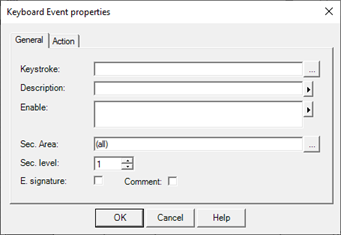
The fields on this window are:
General Tab
|
Keys |
Specifies the combination of keys that must be intercepted and generate the specified action (e.g. SHIFT + F10.) The field cannot be edited directly. By pressing the corresponding button or by double-clicking expansion within the field, the system shows the window Set keystroke to define the key combination ("Key"). In the window Set keystroke the key can be entered by pressing the corresponding sequence of keys on the keyboard (though not simultaneously) or by selecting the buttons that make up the combination displayed on the virtual keyboard. In order to confirm you must select the button OK; to exit the window you need to select the button Cancel. |
|
Description |
Specifies a free text describing the event set |
|
Enable |
Specifies an expression that enables or disables the keyboard response to the event specified: If the field is not filled in, pressing the specified key sequence performs the selected action. If the field contains an Expression, the associated action is executed only if the value of the expression is not equal to 0. The expression must return a numeric or Boolean value. (For more information on expressions, refer to chapter "Expressions and Scripts"and in par. "Fill in the fields Item and / or expression" in the chapter "Common Features editor") |
|
Security Level |
Indicates the minimum authorization level that must be owned by the connected user to activate the animation. (See chap. "User management and authorization levels" in this guide). Allowed values: 1 .. 256 |
|
Security Areas |
Indicates the security areas that must be owned by the connected user to activate the animation. (See chap. "User management and authorization levels" in this guide). |
Action tab
Allows you to program the action to take in response to the activation sequence of key configured. For the configuration of the action, see the instructions in the section "Configuring Actions"Chapter "Common editing"