
Keyboard events
The Keyboard events allow you to define actions to be performed in response to a key press or a key combination. This is referred to as "shortcuts" (shortcuts) to issue commands through the keyboard to the supervisor.
Within X Vision, there are two categories of events from the keyboard:
- Keyboard page Events
- Keyboard System Events
Keyboard page events are only valid when displaying the page for which they are configured; keyboard system events are valid on all pages.
In the case where is defined the same key combination for a page event and for a system event, the page event configuration overrides the configuration of the system event.
To configure the keyboard events:
- Open the desired page. If there are no pages open, you can configure only the Systems Keyboard events.
- Select Keyboard Events from the menu Configure, or double click on the corresponding item in the Project.
- The system displays the window Keyboard Events Configurator:
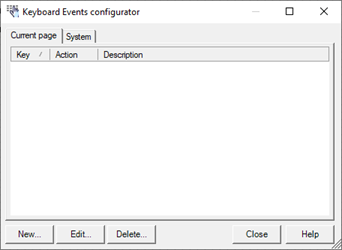
The window is organized in two tabs, Current Page tab show keyboard events defined for the open page. The System tab displays events from the system keyboard.
If there are no pages open then Current Page tab is disabled.
The buttons New, Edit, Delete allow you to define a new keyboard event or edit or delete an existing definition.
The context menu (right click) provides the tools that allow you to copy and paste a single definition or the entire configuration.
Events can be copied within the same page or between pages in different configurations on and between page and system events.
Note: during copy operations, each definition preserves the configured key combination: it is the sole responsibility of the user to verify that each event is assigned a unique combination of keys within the same context. In the event that the same combination is assigned to multiple events in the same context, only the first configured event is intercepted.