
How to insert, select, move and resize objects
The insertion of an object on the page is done by selecting the corresponding icon in the appropriate menu or panel and then dragging the mouse pointer on the active page until you reach the desired size.
After insertion, an object can be selected by clicking on it while it is active the Pointer tool.
The selected object is surrounded by eight white squares (called resize handles), as shown in the figure:

When an object is selected can be moved by dragging it in the desired position.
By placing the mouse on a resizing handle, the pointer becomes a double-arrow shape that indicates the dimensions that can be resized by that handle. By dragging the handles to the desired position, the object is resized.
To select multiple contiguous objects, simply click with the mouse in a blank area of the page and drag the pointer defining a rectangle (called the selection rectangle) that includes all the objects you want to select:
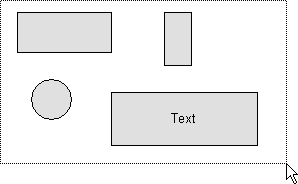
You can add or remove an object to the selection by clicking on it while holding down the SHIFT key.
Note: You cannot resize by dragging a selection of multiple items; however, you can change some common properties of the selected objects, applying to all the same settings.