
Image specific properties: Appearance category
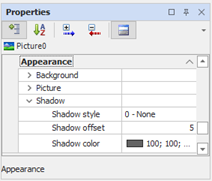
The Image animation has specific properties for the definition of the background image and the managing thresholds. These properties are grouped in the Picture group:
|
Stretch Picture |
Determines whether the image should be adapted to the size of the animation. The proportions and the quality of the displayed image may be corrupted by enabling this option. If this option is disabled, the animation takes on the original size of the image you selected. |
|
Embed picture |
Specifies whether the background image and the images associated with the threshold of the dynamic background image should be recorded in the files of the synoptic (TRUE) or whether it should be retained only reference (by name) to an image file stored in the Pages folder of the project (FALSE). This property must necessarily be set to TRUE if the image animation is part of a group that will be saved as a symbol (otherwise the symbol does not retain the selected image outside the project in which it is created). |
|
Background Image |
Is the image file for the background of the animation. The button "..." allows you to select an image using the dialog box. |
|
Enable transparent color |
Specifies whether the color specified in the property Transparent Color should be used as a mask for the transparent areas of the background image. Transparency is applied to the bits of the image that have the same color of the Transparent color property. |
|
Transparent Color |
Specifies the color to be considered as a mask color for transparent areas. |
Dynamic background image
The properties of the group Dynamic Background Image specifically manage the change of the background
|
Expression |
Specifies the expression that determines the change of the images displayed by the animation.
|
|
Thresholds |
Opens the configuration form of the thresholds to change the image. For details about configuring the thresholds See "Thresholds Image" below in this section |
Image thresholds
The dynamic change of the image contained in a Image is managed according to configured thresholds.
Pressing "..." for the property Image Thresholds you access the configuration window of the thresholds:
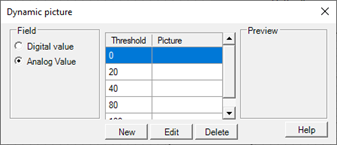
The group options Field allow you to specify the type of thresholds to manage:
|
Discrete value |
Two thresholds are managed according to the discrete value ON / OFF (1/0) computed by the expression. |
|
Analog value |
You can manage a virtually unlimited number of thresholds, defining the values that delimit each threshold. |
The table displays the configured thresholds. The thresholds can be added, modified or deleted with the buttons below. You can preview the selected image in the Preview frame.
Note: for correct operation it is necessary that they are always defined at least two different thresholds, otherwise it is not possible to evaluate any change.
The Dynamic image data window lets you add and modify thresholds:
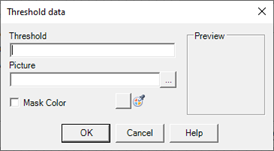
The properties that define a threshold are:
|
Threshold |
Transition value to the current threshold. |
|
Image |
Name of the image associated with the threshold. The button [...] allows you to select the image using the dialog box. |
|
Transparent Color |
Lets make transparent areas of the image which is assigned a particular color. The check box defines whether the management of the transparent color is active, while the selector displays and allows you to change the color that will be considered as a color mask for the transparent areas. By clicking on the selector with the mouse right button, you can pick the color directly from the preview. |
A threshold becomes active when the value of the expression is between the configured threshold value and:
- the value of upper threshold, if the value of the expression is greater than the threshold value
- the value of lower threshold, if the value of the expression is less than the threshold value
If the value of the expression exceeds the minimum threshold, then the minimum threshold is activated. If it exceeds the maximum threshold, then the maximum threshold is activated.