
Import/ Export of Items from/to CSV file
The system enables you to import and export RealTime DataBase to and from an ASCII file in CSV format. You can edit the CSV file and then import it, greatly speeding up the configuration.
Export generates a file with fields of fixed size, so this file is easily editable using Windows WordPad ® or any other text editor. The CSV format is also readable by most of Spreadsheet applications (such as MS Excel ® or OpenOffice Calc).
Warning
If you go to edit the exported file with tools other than a plain text editor (for instance a spreadsheet programs or a word processor) be sure to save changes while maintaining the original format of the exported file (ASCII, CSV for spreadsheets, text only for word processors).
Export
The export procedure records Item data to a CSV file. You can filter the exported items by name.
Selecting the command Export ... from the DataBase menu of X Editor, the system displays the Export window:
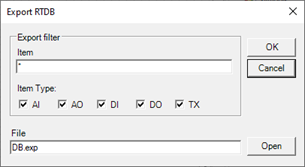
The window contains the following fields:
|
Item |
It allows you to restrict the export to only items that interest you, filtering them by name. The filter may contain "wildcard" (see "Wildcard characters" Chapter "Common editing"). For example, entering "SP*" the system exports only the Item whose name starts with "SP". To export all the items (according to the types selected in the field Item Type) Type "*". |
|
Item Type |
It allows you to restrict exports only to the types of items that interest you, by selecting the corresponding check boxes. To export the entire database, select all the boxes. |
|
File |
Specifies the name and extension of the export file. The export file is saved to the the current project folder. |
Selecting OK the requested file is generated.
Note: exports only those items that match both filter criteria (name / item type).
Import
The import function enables you to insert in the real time database all the items defined in a CSV file. The import append data to the existing database, reporting any errors or duplicated names for the Item.
By selecting the Import... command from the DataBase menu in X Editor, the system displays the dialog box for selecting the file to import.
Select the file to import and click Open to confirm your choice. The system shall import the definitions.
At the end of the operation is displayed that informs about the success of the approach; in case of errors the system displays the window instead List Errors Importing RTDB, Which shows the list of errors committed during the import and possibly allows printing.
At the end of the operation, the system shows a message that indicates the successful outcome of the import, or displays the Error occurred during import window, which displays the list of errors detected.
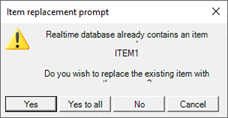
The full list of errors is also recorded in the ImportRtdb.err file, located in the current project folder.
Warning!
The system does not import any item with duplicated name (already existing).
Any error in imported data does not stop the import process.
Import of files generated by previous product versions
To import a CSV file generated by previous versions (5.x, 6.0) of the package you must select the command Import from XV5x ... or Import from 6.0 XV ... (According to the version of the origin of the import file) instead of command Import from the Database menu.