
Limiting items amount
By default X Vision allocates a database of 4096 items in size, regardless of the license purchased.
The usability of these items is limited by the number of credits of the purchased license. If the purchased license includes a number of credits that allow the use of a number of items greater than 4096 is necessary to adjust the maximum size of the database by manually editing the Size parameter in the RTDB.ini file.
Vice versa if the purchased license allows the insertion of a smaller number of items, or the items actually used are much lower than this limit, it may be advantageous, in terms of performance, reduce the number of allocated items, thus reducing the amount of memory being used. Even in this case, you have to manually change the Size parameter in the RTDB.ini file.
The database properties windows shows the current database size.
Changing the number of allocated items
To change the number of allocated items at startup, proceed as follows:
- Turn off the X Vision system.
- Open the current project folder
- Locate the RDB.INI file, if it exists, or create a new document to plain text (TXT) saving it as RTDB.INI
- Navigate to the file RTDB.INI and enter the desired size to the Size entry inside [Unlimited] section, as in the following example:
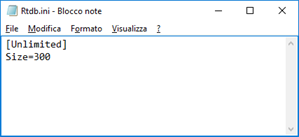
- Save the file. At the next activation, X Vision will allocate the amount of configured items .
For more information about the RTDB.ini file refer to paragraph The RTDB.ini file, inside Appendix Configuration File.