
Symbols library
The Symbols Library can be invoked by selecting the command Symbols Library from the menu Animations\Symbols.
The window displays the available symbols organized into categories, as shown in the figure (symbols and categories may differ from those shown).
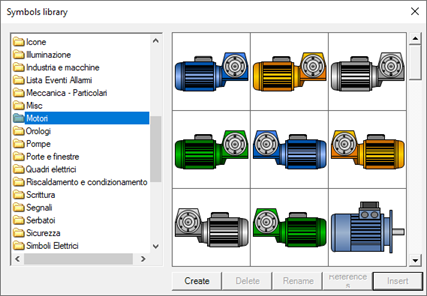
In the left part of the window displays the categories of available symbols. A context menu provides controls for creating, renaming and deleting categories, while the buttons on the bottom of the window allow the management of the symbols belonging to the selected category, which are displayed in the right area.
The icon  in the lower right in the preview of a symbol indicates that the symbol has customization wizard (Intelligent Symbol) or that the symbol is animated (i.e. connected to one or more items or expressions).
The controls for the management of the symbols are summarized below:
|
Create |
Create a symbol to the selected objects in the current synoptic (For more information see"Creating a Symbol"). |
|
Delete |
Removes the selected symbol from the current category, moving it to the Recycle Bin. |
|
Rename |
Changes the name of the selected symbol. The name is displayed in the tooltip for the same symbol. |
|
References |
Allows you to explore and edit the references of the selected symbol (For more information see "Creating a Symbol" and "Changing references to a symbol.") |
|
Insert |
Inserts the selected symbol in the current page. (For more information see "Entering into the screen of an existing symbol"). |
Caution: Changes made to the Symbol Library are permanent and independent of the current project.