
Configuring visible columns
You can specify which fields are to be displayed as columns in the items list, and in what order they should appear. These settings are stored and will be applied every time you open the editor.
To change the display settings of the columns, select the tool  in the toolbar. The system displays the Selecting Fields window:
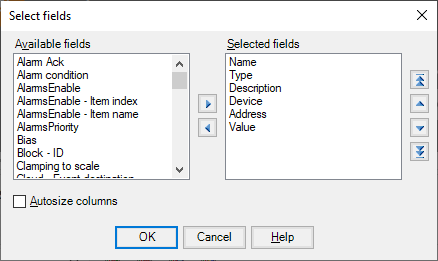
The Availabale fields list shows the list of fields that are not displayed; the Selected Fields list shows the list of fields that are currently displayed in order of appearance.
To add a field to the table, move it from Availbale Fields list to Selected Fields; to remove a field from the table, delete it from the Selected Fields list.
You can move fields from one list to the second one using specific buttons or by dragging.
To change the display order use the vertical navigation buttons shown to the right of the Selected Fields list.
By activating the option Autosize columns the width of the columns will be increased or reduced, while maintaining the relative proportions, based on the horizontal size of the window.