
Grid
X Editor has a reference grid that facilitates the alignment and organization of the objects on the page.
The grid can be displayed or hidden and you can constrain the tracking, resizing and moving objects in such a way that they are aligned at the same step.
The grid starts in the upper left corner of the page, which corresponds to the point with coordinates (0,0).
You can change the grid size in pixels (step) between horizontal and vertical lines by selecting the command Configure Grid from the menu Layout:
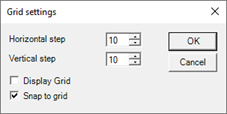
The commands Grid View and Snap to Grid respectively allow you to show or hide the grid and to enable or disable the alignment (Snap) of objects.
The same functions can be enabled or disabled by selecting the commands of the same name in the menu or toolbar Layout without access to the window.
Note: option Snap to Grid can be activated regardless of the visibility of the grid itself.