
Start project by command line
You can activate the X Start directly, without going through the form of project management (Project Manager), using the command line by doing the following:
- Select the command Run ... from the menu Start Windows.
- The operating system displays the window Run:
NoteThe window displayed may differ from that shown in the illustration, depending on the version of the operating system.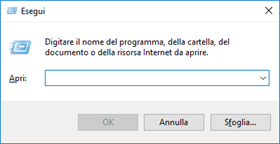
- Delete any text contained in the input field.
- Type in the input field the command line (described later in this section).
- Select OK to perform the activation of the system. In the absence of errors this starts X Vision for the specified project.
The command line is as follows:
<XStartPath> [/ S] [/ P<ProjectPAth>]
where:
<XStartPath>
represents the absolute path the of XSTART80.EXE, enclosed in quotation marks between apical ("). Example:
"C: \ Program Files \ Crickets Automation \ X Vision 8. 0 \ Xstart80.exe"
[/ E]
is an optional parameter. If inserted, after booting the system will activate the development environment (X Editor). If omitted, it will activate the viewer (X View).
Note:X Vision does not differentiate between the scope of the runtime and the scope of development: the automatic activation of either module then does not preclude the subsequent manual activation of the other: the development environment (X Editor) and the display module (X View ) can coexist and be activated at any time independently of one another and independently of the start parameter specified.
/ P<PercorsoProgetto>
represents the absolute path of the folder of the project to be activated, located into the Projects folder located into the installation folder of X Vision. The path must be preceded by the "/ P". This parameter is required.
Example:
/ PC: \ Program Files \ Crickets Automation \ X Vision 8. 0 \ Projects \ Demo
Note Even if the path contains one or more spaces, it is a parameter and must not be enclosed between apical quotation marks ("), as is the case for the executable path. Among the delimiter "/ P"and the path of the project there should be no spaces.
Note: The syntax described can also be used to create a shortcut for the start of the supervision system by the end user. The connection can be created manually or by selecting the appropriate command in the Project Manager, as described in the section "Creating a connection and activation on PC startup".