
Substitutions configuration
The substitutions are configured for each page, in a settings dialog, which is invoked by selecting the command Substitutions from the menu Configure, or by double-clicking on the corresponding icon in the Project window. The Substitutions window can be made floating or anchored, and looks like as in the picture:
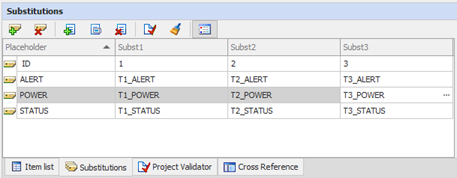
The grid shows the symbols defined for the current page and its replacement, which is the text with which these symbols will be replaced. Each column represents a different set of replacement (substitution).
References management
By placing symbolic references in the properties of the animations, they are automatically added to the table of substitutions. Other symbols can be added manually by selecting the command New Palceholder; one or more defined references can be removed with the command Delete selected Placeholders:
|
|
New Placeholder: Defines a new pelaceholder, by inserting a new row in the table |
|
|
Delete Selected Placeholders : Deletes the selected references in the table and related expressions (i.e. deletes a row in the table). |


Substitutions management
The controls for the management of the substitutions are shown below:
|
|
New Substitution: Defines a new set of references (placeholders), i.e. a new column in the table |
|
|
Rename Substitution: Allows you to rename an existing substitution |
|
|
Delete Substitutions: Allows you to delete one or more substitution, that is, one or more columns in the table. |


The system will default to two substitutions. The command New Substitution allows you to define a new set, i.e. a new column.
Changing the name of each must be unique.
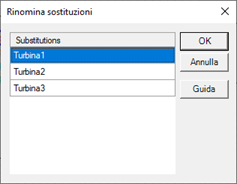
Substitutions can be renamed with the existing command Rename Substitution. The system displays a list of substitutions in this set allowing the change:
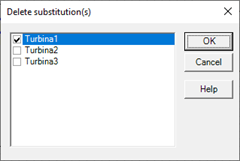
The command Delete Substitutions allows you to delete one or more sets of substitutions selecting between existing ones:
Auxiliary functions
The system also provides some functions for automatic filling and purging the list of symbols:
|
|
Check placeholders list of references: Scans the current page by inserting in the table all the references and highlighting the references are no longer used |
|
|
Remove unused palceholders: Delete all references that are not used on the page. |


The command Check palceholders list allows you to automatically update the list of references, adding all the references in the table on the page and highlighting the references are no longer used, which can then be removed.
The new references inserted are marked with the icon  While the references are no longer used are marked with a red "X":
  .
.
The command Remove Unused Placeholders check again the actual use of the references in the table, providing for the removal of those who are not used on the page.