
Text Specific Properties: Text category
The Text animation has some specific properties that determine the arrangement of the text in the animation and define the management of formatting and of data entry.
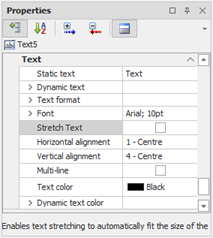
These properties are grouped in the Text category:
|
Stretch text |
If enabled, ignore the size settings and adjusts the font size occupying the entire area of the animation. |
|
Horizontal Alignment |
Specifies the horizontal alignment of the text. Possible choices:
|
|
Vertical Alignment |
Specifies the vertical alignment of the text. If the Multiline or Stretch text properties are enabled this setting is not available. Possible choices:
|
|
Multiline |
Specifies whether the text can be shown on multiple lines when it exceeds the horizontal size of the animation. If the properties Multiline or Stretch text are enabled this setting is not available. |
|
Fixed text |
Specifies the fixed text to display in the animation: this text will be displayed only if you do not enter any expression linked to the text in the Dynamic Text group. You can insert an underscore character (mnemonic) by preceding the character from the "&". To display the "&" character in the text, insert doubled ("&&") Note: the insertion of the underlining of the mnemonics in the text is exclusively graphic: it does not implement the actual recognition of the keyboard mnemonic.Such recognition can be impelmented by the configuration of the Events from Keyboard for the page. |
Dynamic text
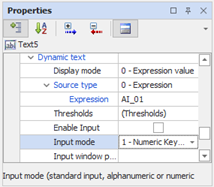
The properties of the Dynamic Text group allow you to configure the text to display the result of an expression instead of a fixed text.
|
Display mode |
Specifies the mode of data representation. Possible choices:
|
|
Expression |
Specifies the expression linked to the text, either directly or in decoded form; if Enable input is set to TRUE, just enter the name of the item for which to edit the value. |
|
Thresholds |
Opens the configuration form of thresholds for displaying text with Display Type = "Decode". For details about configuring the thresholds see "Text thresholds " below in this section |
|
Enable input |
Specifies whether the text box allows editing of the data by the operator. Note: the entry is not performed if the animation has been configured to run an Action. |
|
Input mode |
Indicates the data entry mode. It has no effect if the data entry is not enabled. Choices available:
|
|
Input window prompt |
Allows you to specify a brief message (prompt) to be displayed in the data entry window, e.g. "Please enter the article number." It has no effect if the data entry is not enabled. |
Text Thresholds
The decoder function allows you to display a text value related to the value assumed by the expression connected: similar to what happens for the management of dynamic colors, you can define thresholds values which bind the displayed text.
Pressing "..." for the Text Thresholds property, you access the thresholds configuration window:
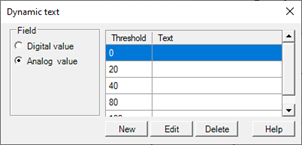
The Field group options allow you to specify the type of thresholds to manage:
|
Digital value |
Two thresholds are managed according to the discrete value ON / OFF (0/0) of the expression. |
|
Analog value |
You can manage a virtually unlimited number of thresholds, defining the values that delimit each threshold. |
The table in the right part of the window displays the configured thresholds. The thresholds can be added, modified or deleted with the buttons below.
Note: for correct operation it is necessary that they are always defined at least two different thresholds, otherwise it is not possible to calculate any change.
The creation or modification of a threshold occurs by configuring appropriately the properties through the appropriate Threshold data window:
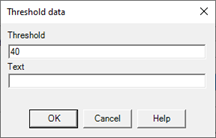
The properties that define a threshold are:
|
Threshold |
Value against which the transition occurs |
|
Text |
Text displayed by animation in front of the transition |
A threshold becomes active when the value of the expression is between the configured threshold value and:
- the value of upper threshold, if the value of the expression is greater than the threshold value
- the value of lower threshold, if the value of the expression is less than the threshold value
If the value of the expression exceeds the minimum threshold, then the minimum threshold is activated, If it exceeds the maximum threshold then the maximum threshold is activated.
Formatting text
The properties of the Text Format group allow you to define the format of the data displayed
The settings in this group have no effect if the Display mode is set to "Decode".
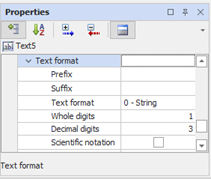
|
Prefix |
Allows you to specify a text to be prepended to the value displayed. |
|
Suffix |
Specifies a text to postpone the displayed value. |
|
Text type |
Specifies the display format of the text displayed. Possible choices:
|
|
Whole digits |
When Text mode is set to "Number" it indicates the number of integer digits to display When Text mode is set to "Hex" it indicates the number of fixed digits to display. If the number of digits of the integer value exceeds the specified number, the extra digits will still be displayed; if less it will be added some "0" to the left of the value to reach the number of whole digits required. |
|
Decimal digits |
When Text Type is set to "Number" it indicates the number of decimal palces to display. If value exceeds the specified number of decimal places, the value is rounded; if less it will be added some "0" to the right of the decimal part to reach the number of decimal places. Note: Any rounding takes effect only on the displayed data. |
|
Scientific Notation |
Enables the representation of value in scientific notation. |