
Actions list
Selecting, for voice Built-in Action, the option Action List you can configure the execution of a list of actions in place of a single action, further reducing the need to develop a script.
The "..." button related to the Action List field provides access to the homonymous configuration window to define the actions that make up the list:
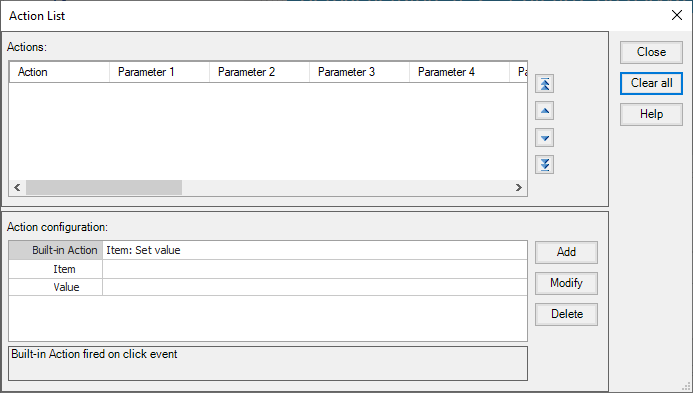
The actions are currently configured are displayed in the list. The display order, from top to bottom, corresponds to the sequence of execution. The position of an action within this sequence can be modified using the appropriate navigation buttons available to the right of the list.
Selecting an action in the list, the corresponding configuration is displayed in the right part of the window. The configuration area allows you to define the parameters of a new action and view and / or modify the data inserted action.
The functions of adding and editing actions are made available by the following commands:
|
Add |
Add an action to the list on the right side of the window. To copy an existing action, select the action you want to copy (the fields are updated with the configuration of the selected action) and apply the command without making any changes. The action is always added to the last position. |
|
Modify |
Apply the configuration set in the right part of the window to the currently selected action in the action list. |
|
Delete |
Delete the currently selected action from the Action List. |
|
Empty |
Empty the contents of the action list, eliminating all configured actions. |
Note: some actions interrupt the execution sequence and must therefore be configured, if used, as a last action: otherwise all subsequent actions are ignored.
The actions that cause the interruption of the sequence are:
- Change page (background or popup)
- Hyperlink
- The display of menu
- All actions involving the display of a dialog box (e.g. Scheduler Configuration, Change Password, etc.).
- Exiting from X View, from X Vision or closing the Windows ® session.