
Compiling item/expression fields
Item or Expression fields allow you to link an element to the process data. In particular, in the Item fields you can specify only one Item (or Local Variable), while in the Expression fields you can specify mathematical-logical expressions, even between multiple items. The limitation to a single item exists when the value is not exclusively queried by the object but can also be modified (as in the case of a CheckBox animation), or for the definition of some trigger signals.
Except where you want to expressly emphasize the difference between the two cases, in this guide we will talk generically about Expressions, meaning indifferently the fields Item or Expression.
.
To facilitate the editing of expressions fields, Item and Expression are equipped with an expansion button:
***SOPRA, DA SOSTITUIRE/CANCELLARE?***
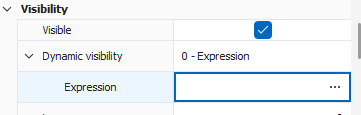
The key expansion allows for the placing of the expression in an resizable editing window, as illustrated in the figure:
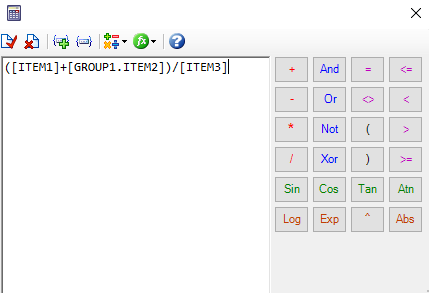
Closing the input window, its content is transferred to the Expression field that has invoked.
In the Expression fields, or into their own edit windows, the names of the Item (or Local Variables) can be entered manually or selected from those available through a separate selection list.
Note: The Expression fields displayed in the property table do not directly handle the insertion of several items due to space reasons: to insert more items in an expression, the expansion window must be used.
You can also view and edit the properties of the items included and create new ones as needed, without leaving the input expression. These operations can be performed by double-clicking inside the field.
The effect of the double-click depends on the contents of the field and from the point at which the command is issued:
- If the field is empty, or if the double click does not occur in a portion of text, the selection list is displayed for entering Item or a local variable.
- If the double click involves a portion of text and this text does not coincide with an operator or a reserved word VB Script, neither with a numerical or textual constant, nor with the name of an existing Local Variable or Item, it is proposed to create a new item with the name of the text involved in the double click.
- If the text in correspondence with which the double click is made coincides with the name of an existing item, double clicking on it opens the relative properties window.
- If the double click involves a local variable, the selection list of the local variables is displayed.
The selection list, as shown in the following figure, allows the selection of items existing in the realtime database and the instant creation of new items as needed, as well as the selection of a local variable. Alternatively, to insert a placeholder for the Substitutions (See chapter "Substitutions"In this Guide).
The Item XVision tab displays all the items that are currently defined in the realtime database; the Variables tab displays the local variables available; the Substitutions tab displays the symbols defined for the Substitutions the current page, and is available only for items belonging to the page.
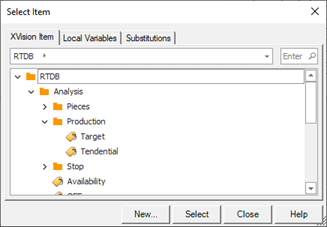
To insert an item in the Item or Expression field:
- Select the tab for the type of item you want, then select the item.
- Click the command Select or double-click on the selected item. The element is transcribed in the caller.
You can search an item typing its first letter or choosing the Search command from the contextual menu. You can add a new Item choosing the New command form the contextual menu.
Note: An expression (i.e. containing items, functions, or numeric constants and / or text, or other operators) can not mix item and local variables. A local variable, if used, is the only component of the expression.
|
$ NetStatus |
Correct |
|
$ NetStatus OR ITEM_1 |
Incorrect |
|
$ NetStatus + 3 |
Incorrect |
|
$ NetStatus & "Hello" |
Incorrect |