
Defining operators group
Alarm messages are sent to groups of operators. A group contains one or more operators (recipients of alarm notifications).
To configure the operator groups, select User Groups Configuration under the Remote Alarm item in the Configuration menu of the X Editor. The system shows the Group Configuration window, shown in the following figure:
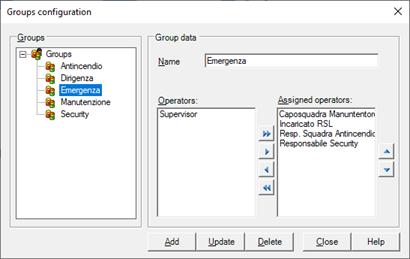
The window displays the list of groups that are currently configured and the related configuration data. In particular, the window has the following fields:
|
Groups. |
Displays groups that are currently defined |
|
Name |
Specifies the unique name of the group |
|
Operators |
Displays the list of users defined and not yet associated with the group |
|
Assigned operators |
Dispalys the list of users associated with the group. Operators can be associated with the group from the list by moving users from Operators list to the Assigend operator list, using navigations buttons. Note: the order in which the operators are displayed in the Operators list in the group corresponds to the order in which the alarm messages are sent: the messages will be sent first to the first operator on the list using all the media configured for it, then to the following ones. |
Adding, editing and removing a group
To define a new Group:
Enter the details of the new group in the fields of the Group Data frame assigning a unique name and selecting associated users.
Note: if you select an existing group, the fields of the Group Data frame are populated with the data for the selected group. To enter data for the new group, delete or change the displayed data.
After entering the new settings, push the Add button. The group entered is added to Groups List.
For editing the definition of an existing group:
- Select the group you want to edit in the Groups List
- The system displays in the Group Data pane the current data of the selected group. Make the desired changes.
- Push the Edit button for changes to take effect.
For eliminate a group:
- Select the group you want to delete in List Groups
- Select the Delete button. The system displays a confirmation dialog before proceeding with the definitive cancellation of the group.