
Search functions
History allows you to search within the displayed report. You can search for an item name or text in the descriptions.
To perform a search:
- Select the row from which you want to search in the list.
- Select the Search ... command from the Tools menu. The system shows the Search window:
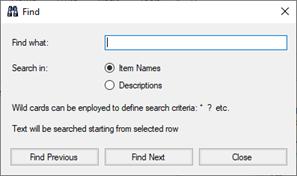
- Type the search string and specify whether the search should be performed between Item Names or Descriptions.
Note: The search string can be specified with standard characters to search for the exact inserted text, or by using wildcards (see the section "Joker characters" in the chapter "Common editing functions").
For example, to search for rows for all items whose name contains the text "DEP", type: * DEP *
Note: You can not search the item name fields if the Item Name column has been hidden; You can not search the Description fields if the Description column has been hidden.
- Click on Find Next to search forward or to Find Previous to search backwardr. The search is performed between the visible events, in the specified direction, starting from the selected row. Click on Close to abandon the operation.
- The system starts the search from the selected line. The first occurrence found is selected. During the search, the Search window remains visible. Click on Find Next to view the next occurrence or click Close to end the search.
After closing the Search window, the Find Next and Find Previous commands available in the Tools menu allow you to search down or up next occurrence corresponding to the last set search parameters.
The Search Selected Item command in the Tools menu allows you to open the search window by setting the item name of the event currently selected in the list as a search parameter. The command is available if the Item Name column is visible and if the list contains at least one event