
The Properties window
The Property window displays and allows you to change the current properties for the selected animation or, in the absence of selection, the current page.
The window can be kept always visible, facilitating the inspection and changes of the properties of the elements in the page. The information contained in it is updated on the basis of the selection. If there are multiple objects selected property changes are assigned to all objects in the group.
For ease of reference the properties are organized into Categories; each category in turn can contain one or more Nodes. Each node represents a set of related properties.
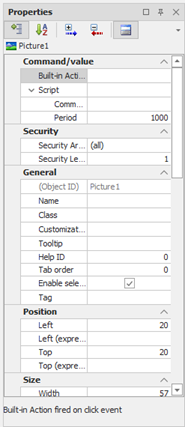
The grid highlights (blue text) the properties (and their groups) to which was added a reference to an item or expression, or action has been defined, or scripts are highlighted in blue, so that it is immediately clear which properties are Animated.
The modified properties are highlighted in bold until the selection of a new object.
At the bottom of the window the system displays a brief description of the selected property, which allows you to get a rough indication without the need to access help.
A toolbar at the top of the window makes available some commands for changing the display properties table:
|
|
View by category View properties by organizing them into categories (standard view) |
|
|
View in alphabetical order View properties by arranging them in alphabetical order |
|
|
Expand All Expands all nodes of the category and sub-nodes |
|
|
Collapse All Collapses all nodes in the category and sub-nodes |
|
|
Show / Hide property description Allows you to display or hide the area for help located at the bottom of the properties grid. |


The Properties window can be displayed (or recalled if set as pop-up window) by selecting Property from the menu View or from the context menu for an element with the screen or keyboard with Alt + Enter.